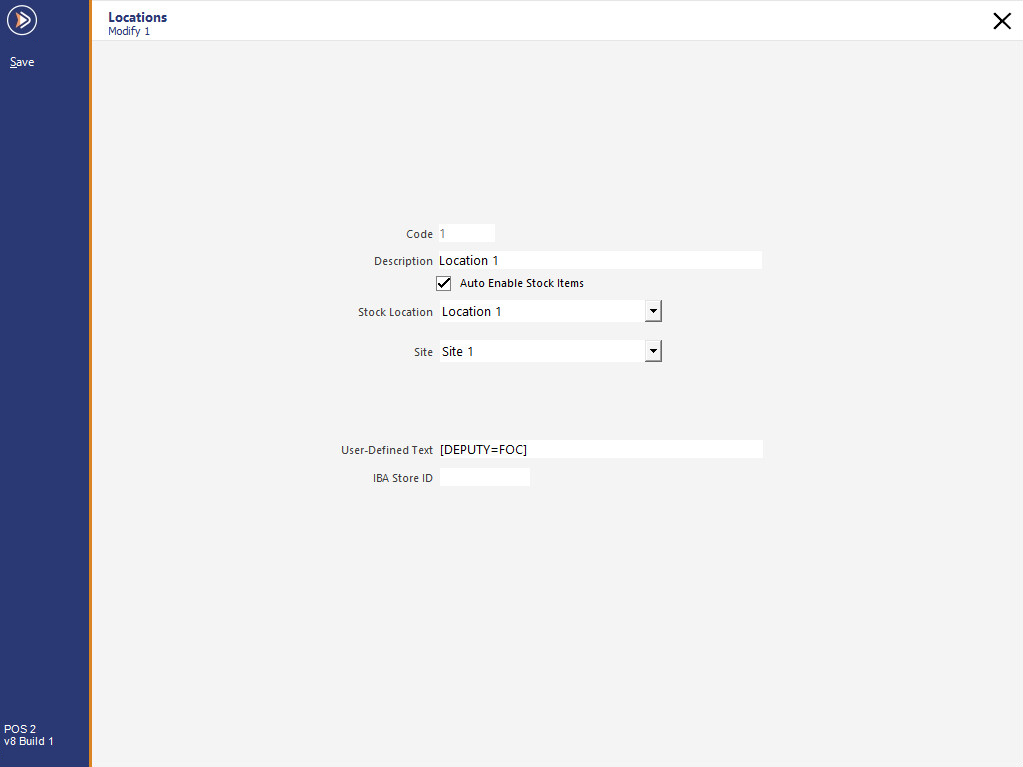
In Idealpos go to File Stock Control > Locations > the name exported must match the areas configured within Deputy.
You can export the names to match Deputy by entering the following in the user-Defined section [DEPUTY=XXX], XXX = the area name.
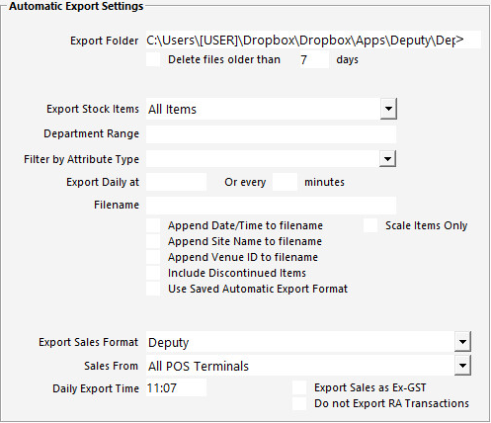
Go to Setup > POS Terminals > Add/Modify the terminal to do the export > Import/Export > Automatic Export Settings.
Export Folder: Dropbox folder - C:\Users\[USER]\Dropbox\Dropbox\Apps\Deputy\DeputySalesData
Format: Deputy or Deputy Table Orders
Sales From: All POS Terminals
Daily Export Time: 01:00 (24hr format)
Export Sales as GST: Deputy uses the sales data to work out the wage cost as a percentage of revenue. Most businesses work out wage cost targets as a percentage of net revenue. So, it is the net revenue (Ex-GST) amount that needs to be reported to Deputy.
Do not Export RA Transactions: Gratuity figures are currently included in the sales data. This makes the reported wage percentage inaccurate (especially for venues that generate larger gratuities). The option to not export RA will include Gift Voucher sales.
Note regarding Export Sales Format!
In Idealpos v10 Build 4 and newer, Deputy Table Orders is available as an Export Sales Format.
Deputy Table Orders will export Table Add data to Deputy (i.e. when items are saved to Tables on the Restaurant Table Map).
Note that the format of the exported data is the same as the "Deputy" Export Sales Format.
The difference between "Deputy" and "Deputy Table Orders" is listed below:
The below is an example of the Deputy/Deputy Table Orders Export Format:
Date/Time,Employee Name,Department Name,Unique Sales Reference,Sales Quantity,Sales Amount
2026-10-21 10:03,Jeremy,Location 1,3853-1,3,10.00
2026-10-21 10:03,Jeremy,Location 1,3854-1,3,10.00